
Artwork Preview Tool
Call us now!
Promotional Gift Division
Printing Division
Machineries Division
Promotional Gift Division ( Sister Company )
Logo formats
PNG, JPG, JPEG, SVG
Maximum size
5 MB per uploaded file
Number of logos
Up to three logos
Best result
High-resolution PNG or SVG
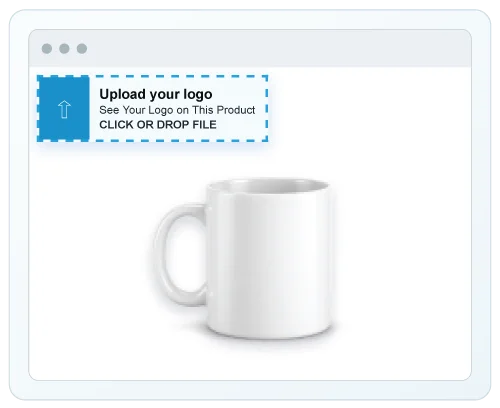
Select Upload your logo, then choose a supported image. You can also drag and drop the file onto the upload area.
• The enlarged gallery opens automatically after upload.
• Use PNG or SVG for the cleanest edges.
• Files larger than 5 MB are rejected.
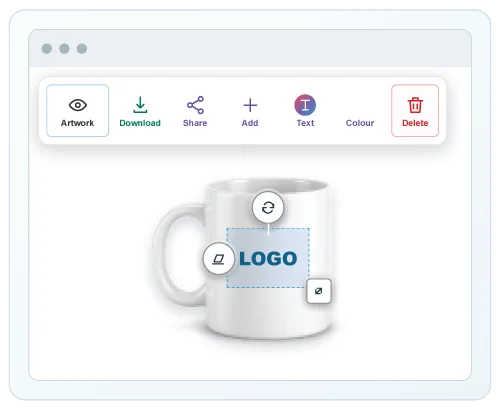
Touch or click the logo to select it. Drag the logo onto the required print position and use the corner handle to resize it.
• Desktop: drag with the mouse.
• Mobile: move with one or two fingers; pinch with two fingers to resize.
• Artwork is limited to 80% of the gallery area.
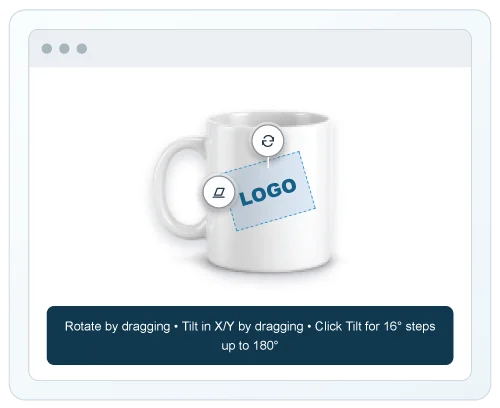
Drag Rotate around the artwork for flat rotation. Drag Tilt horizontally or vertically for perspective on angled products.
• Click Tilt repeatedly for horizontal 16° steps.
• The click range ends at 180°; the next click resets it.
• On mobile, two-finger twisting also rotates the artwork.
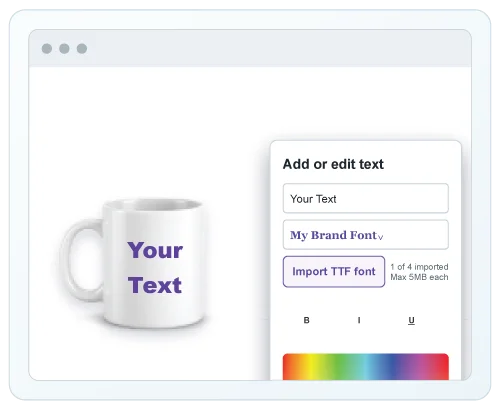
Select Text, type your wording, and preview changes live.
• Choose trendy English or Arabic fonts.
• Select Import TTF font to add your own typeface. You can import up to
four .TTF files, with a maximum size of 5 MB each.
• The newly imported font is selected automatically and appears in the
font dropdown with its real style preview.
• Apply bold, italic, underline, size, spacing, and colour.
• Use Undo or Redo inside the editor.
• Text can be moved, resized, rotated, tilted, and wrapped like a logo.
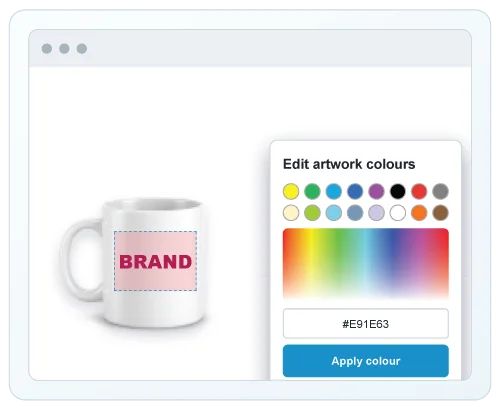
Select artwork or text, then choose Colour. Pick a preset or choose a precise shade from the spectrum.
• HEX and CMYK values update with the selected colour.
• Changes preview live.
• Close without applying to keep the previously applied colour
Use the background controller to show or remove the logo background.
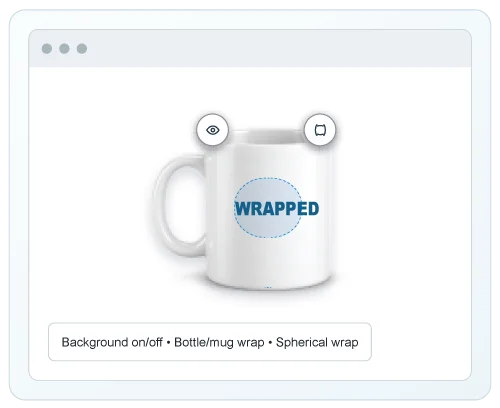
Use Wrap to simulate printing on bottles, mugs, cans, or rounded products.
• First wrap mode: cylindrical products.
• Second wrap mode: spherical products.
• Third click: remove wrapping.
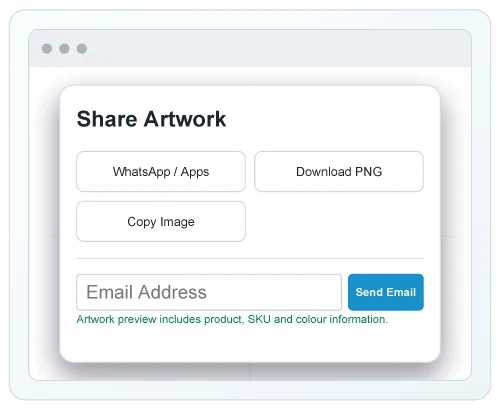
Select Download for a PNG, or select Share to send it through an installed app, copy the image, or email it as an attachment.
• Email includes product name, SKU, and product URL.
• The email button pauses for eight seconds after a successful send.
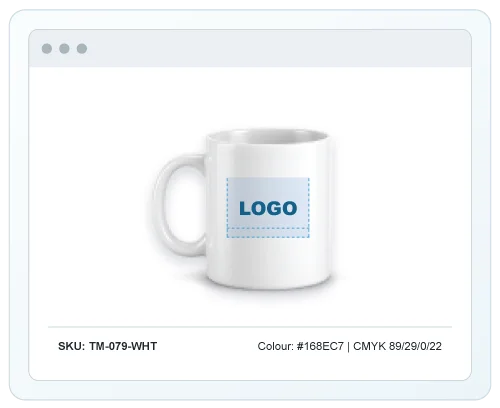
• Copied and downloaded previews include SKU, HEX, and CMYK
details.
Once the artwork looks right, continue with the product’s Request a Quote action and choose the quantity.
• The customised product preview is carried into the quote cart.
• The submitted RFQ email and order contain the product with artwork.
• Original uploaded artwork files are available separately to the sales
team.