

-38%
الوصف
More Details
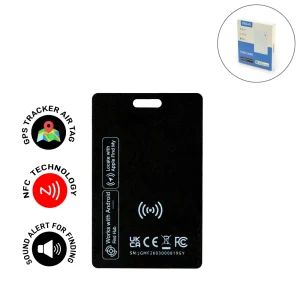
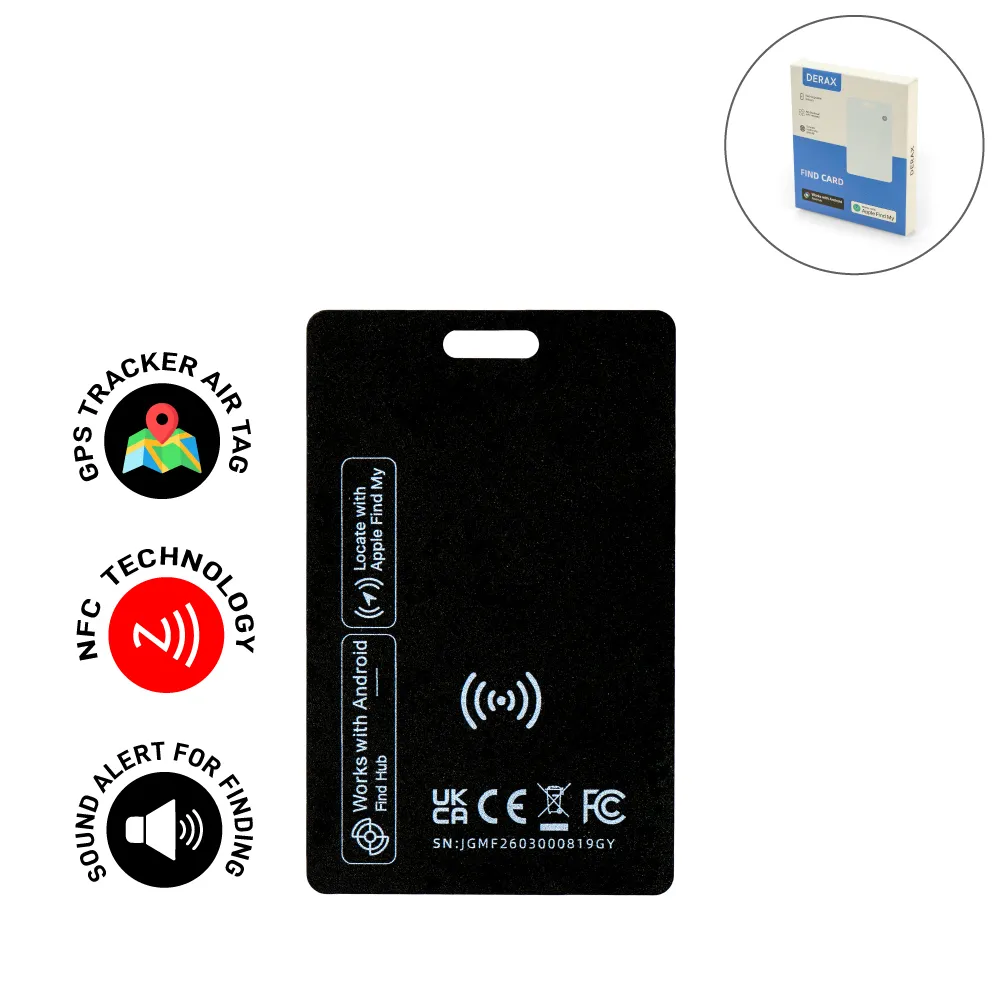
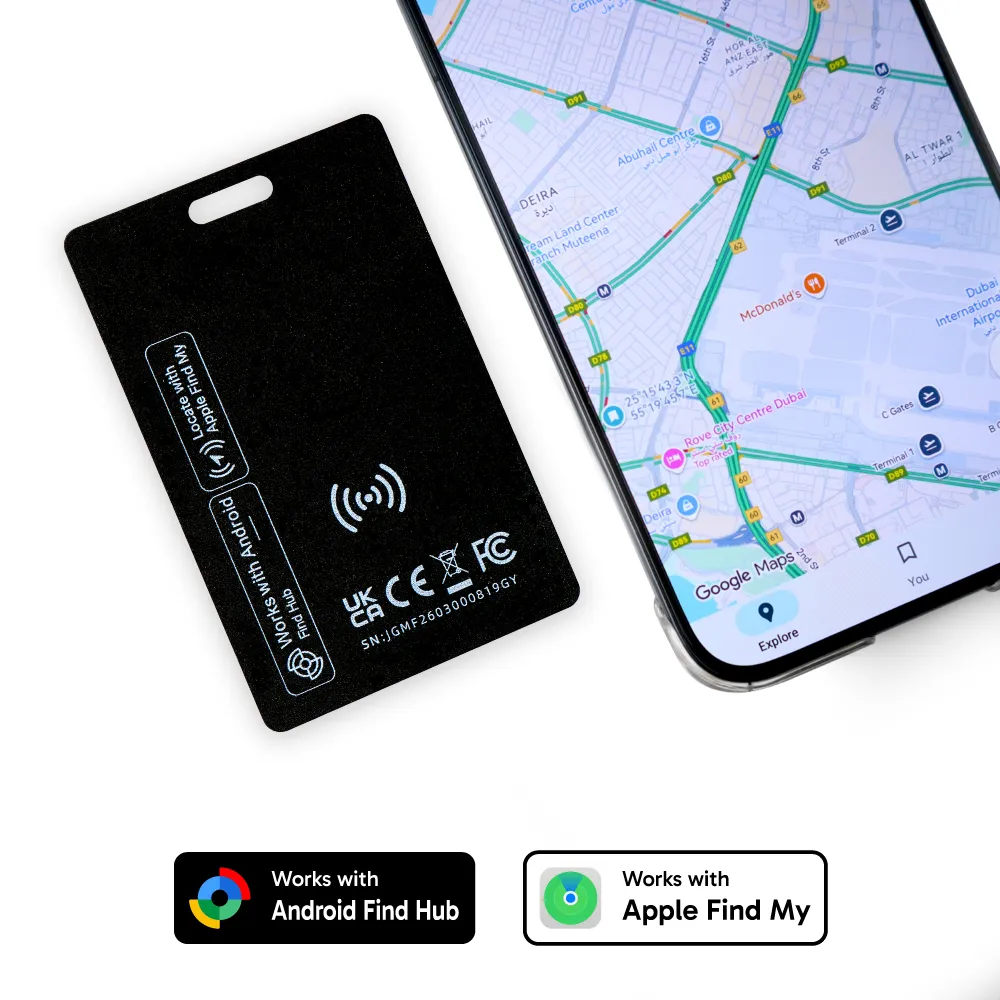
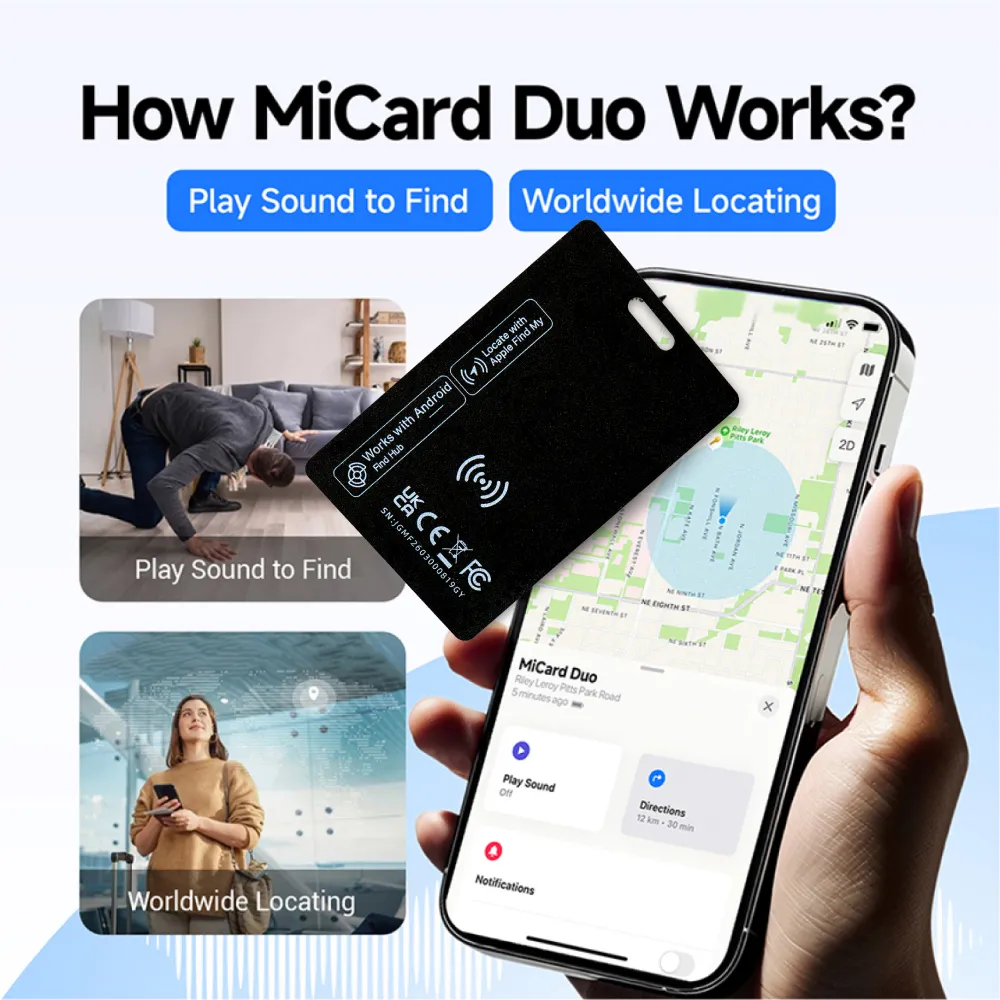
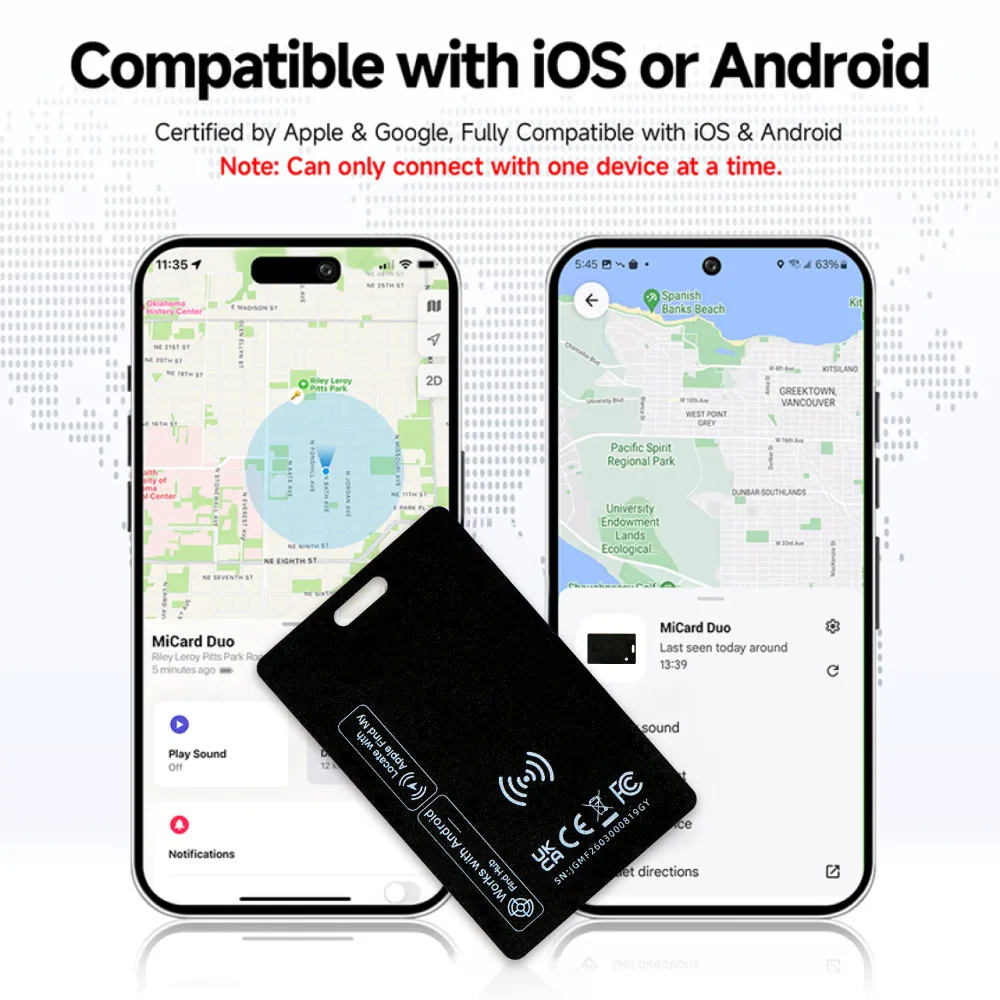
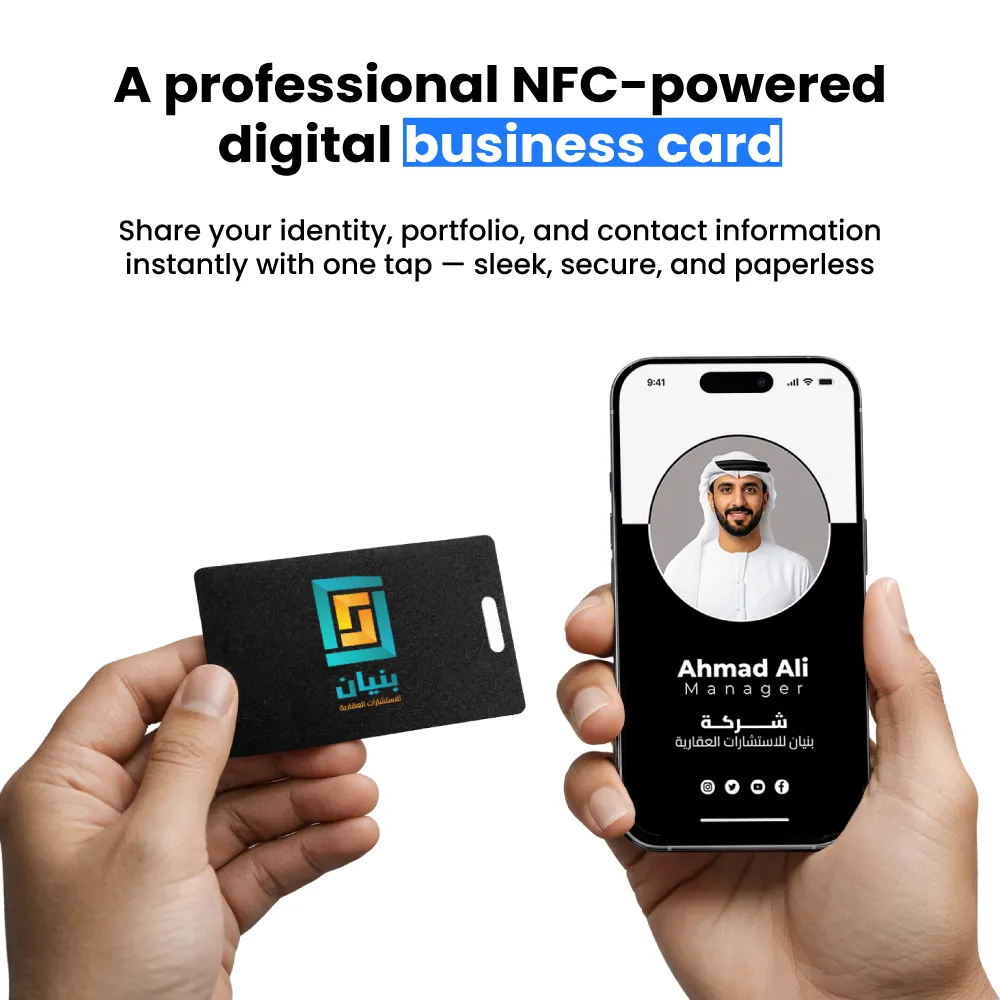
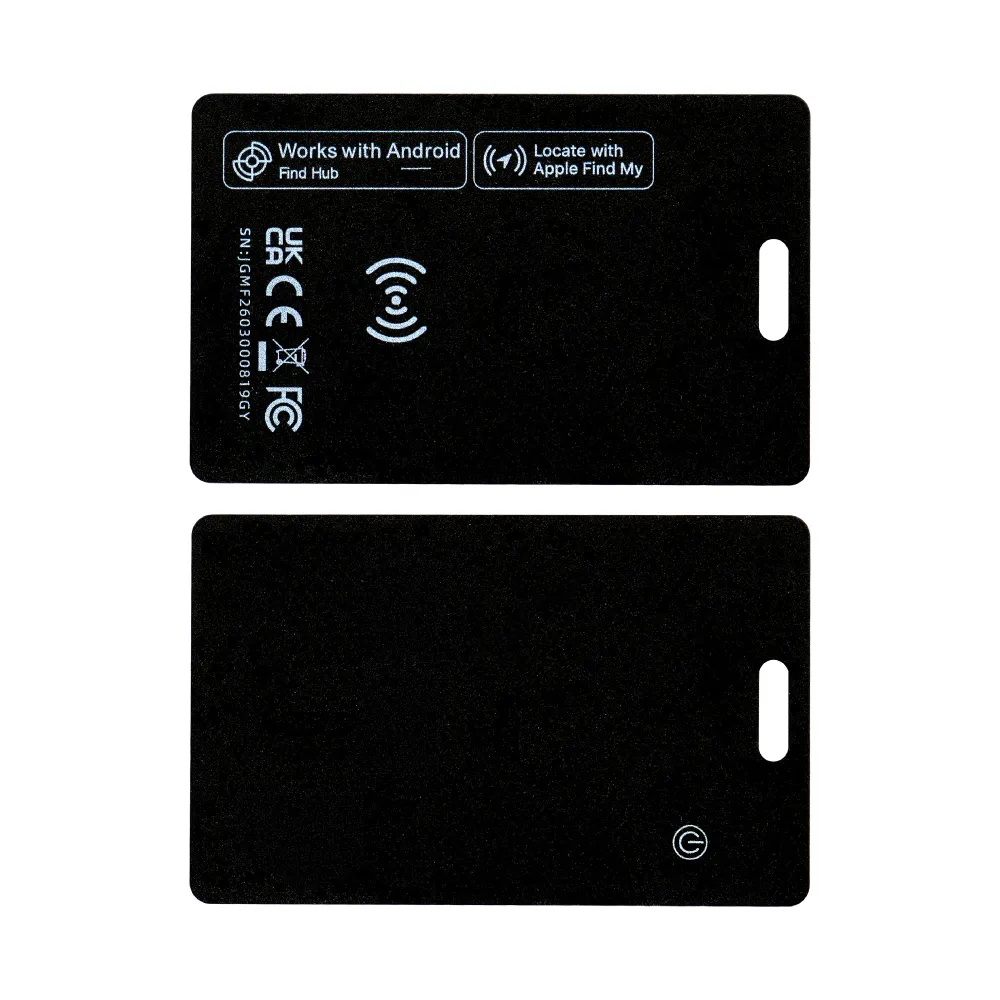
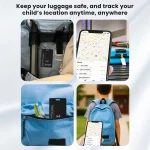
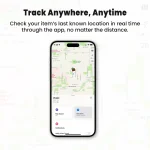
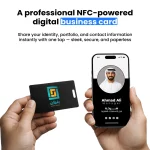
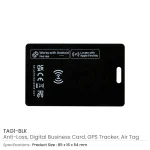
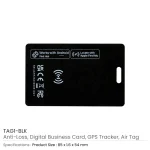
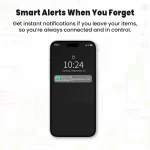
جهاز أنيق ومتعدد الوظائف يجمع بين التتبّع الذكي لمكافحة الفقدان وميزة بطاقة أعمال رقمية عبر NFC في تصميم فائق النحافة يمكن وضعه بسهولة داخل المحفظة أو تثبيته مع المتعلقات. يعمل عبر Bluetooth 5.2 ومتوافق مع iOS وAndroid، ويدعم شبكات Apple Find My وGoogle Find My Device / Find Hub لتعزيز الأمان وسهولة العثور على الأغراض. خيار مثالي للمحترفين الذين يبحثون عن الابتكار والعملية في جهاز واحد.
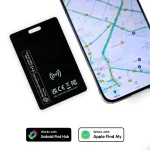
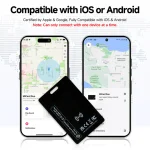
اعثر على أي شيء، في أي مكان — بسلاسة مع توافق Apple وGoogle
المزايا الأساسية (Key Features)
-
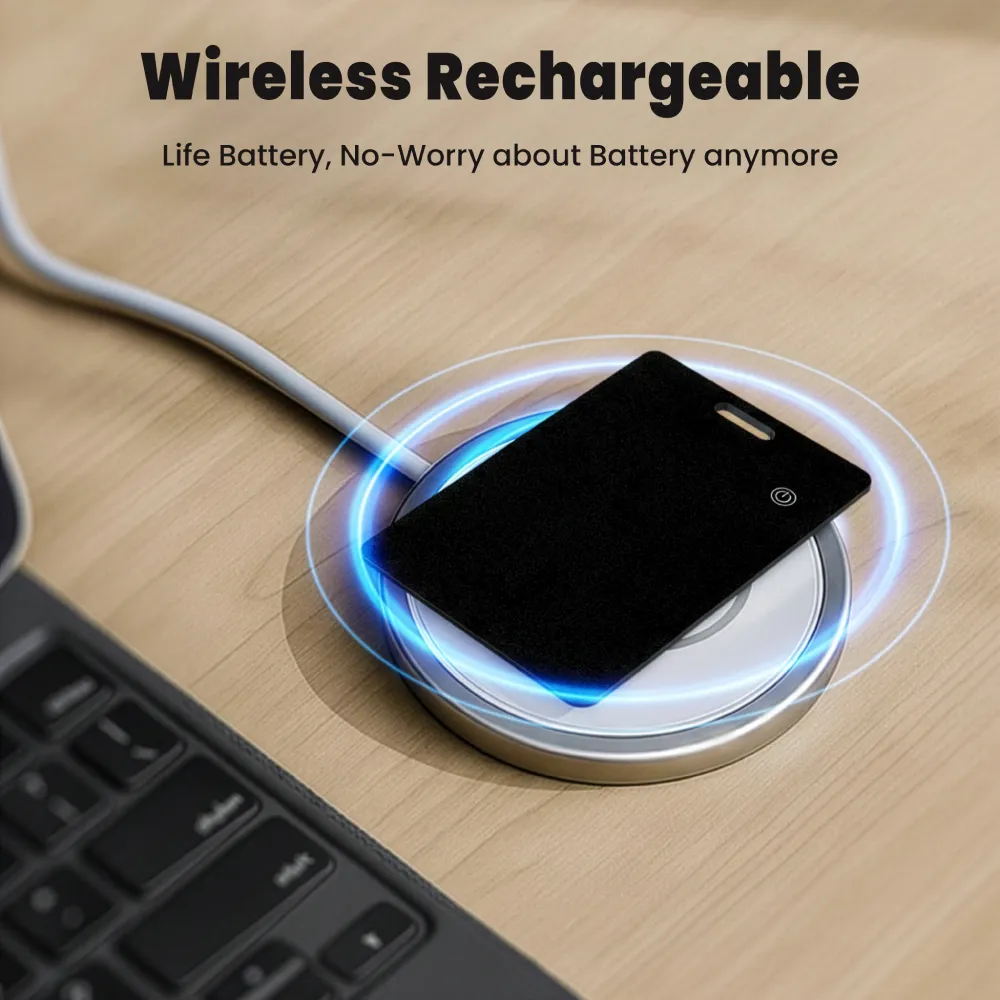
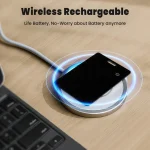
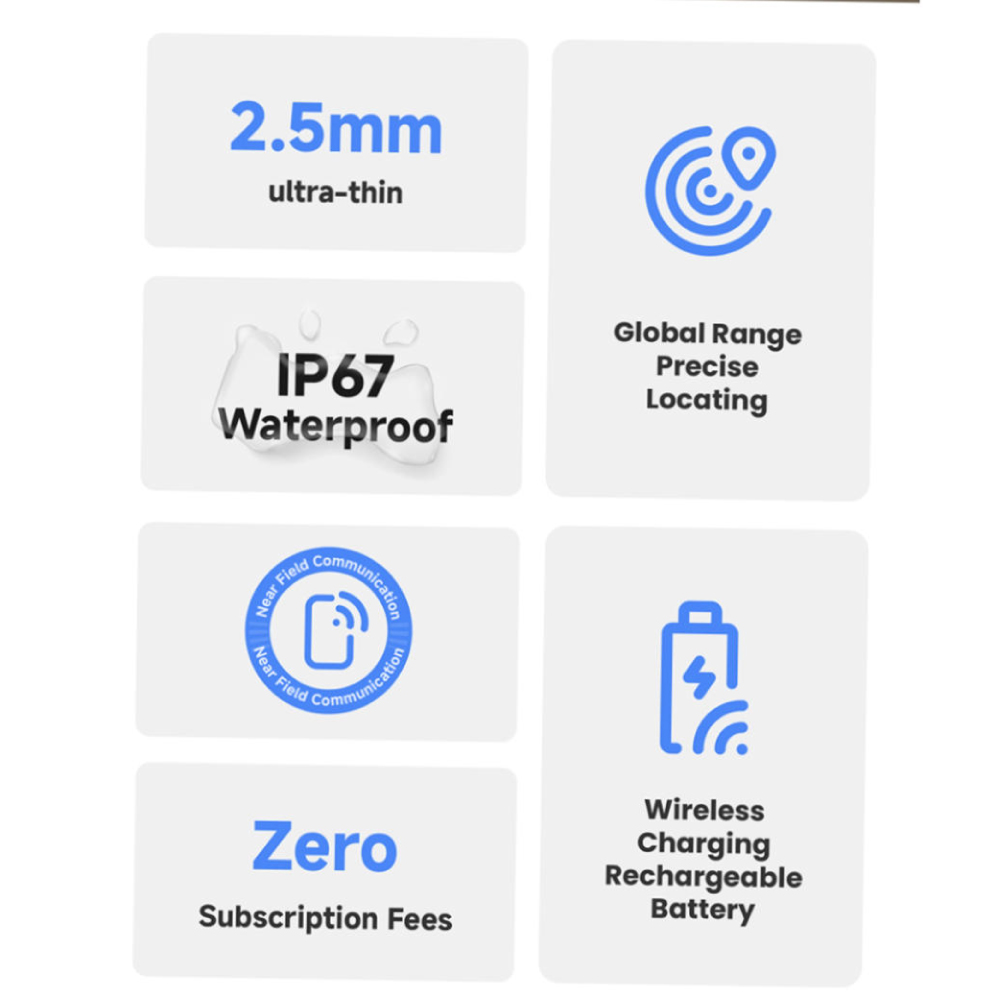
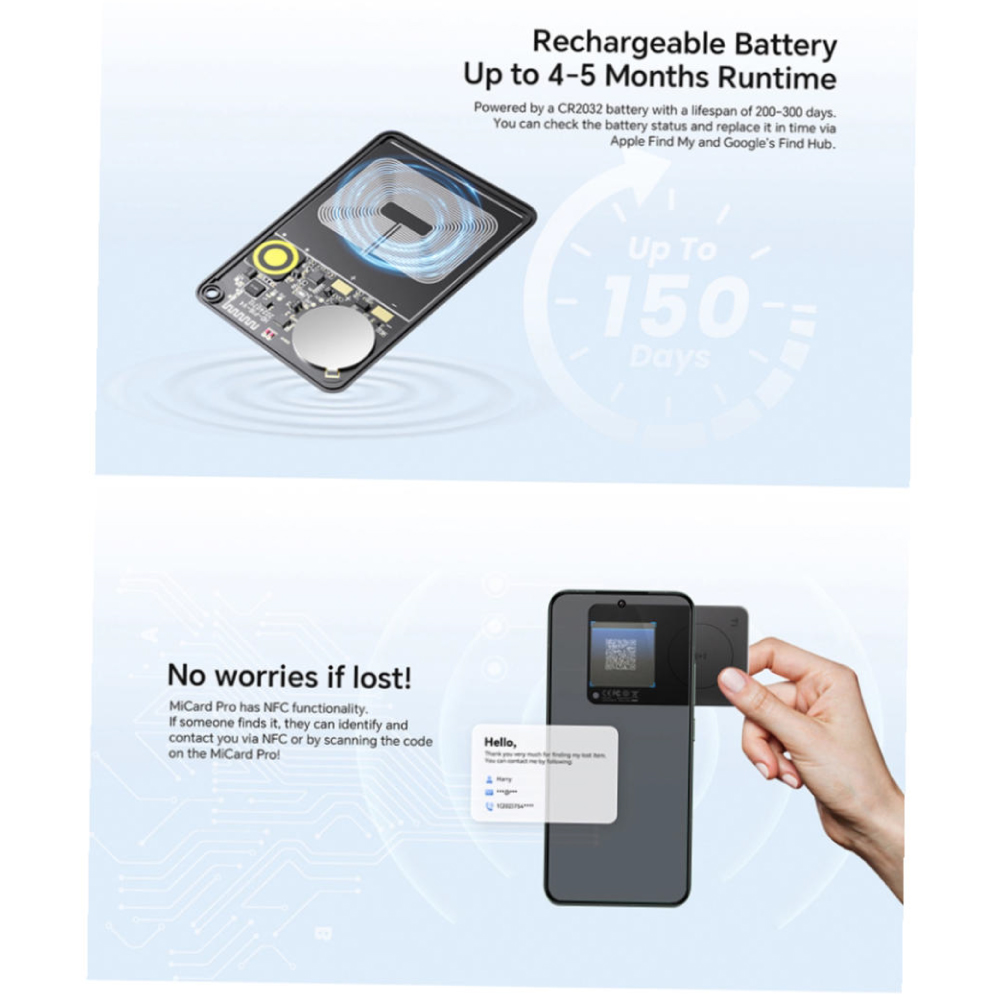
🔋 بطارية طويلة العمر: تدعم الشحن اللاسلكي وتوفر حتى 12 شهراً من الاستخدام. (قد تختلف حسب الإصدار؛ بعض الإصدارات تستخدم بطارية CR2032 قابلة للاستبدال)
-
✅ توافق مزدوج: معتمد للعمل مع أنظمة iOS وAndroid
-
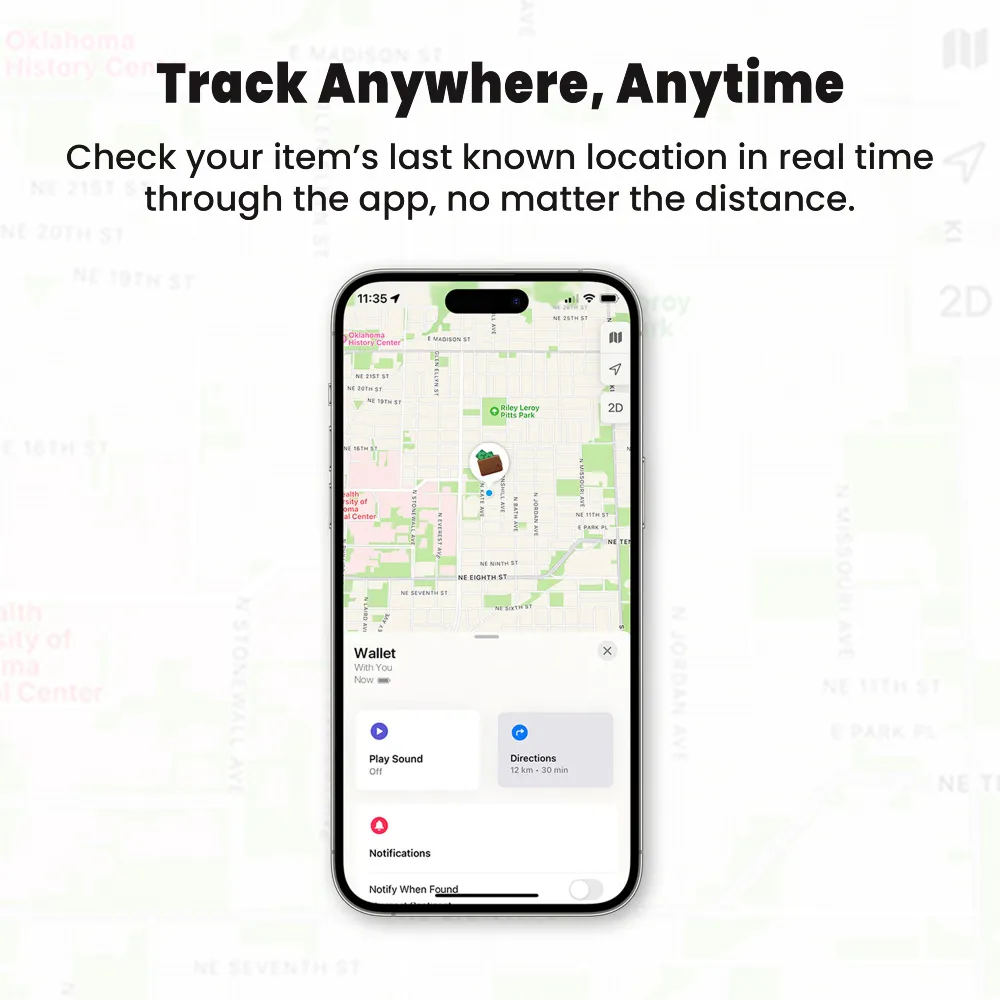
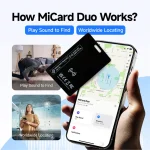
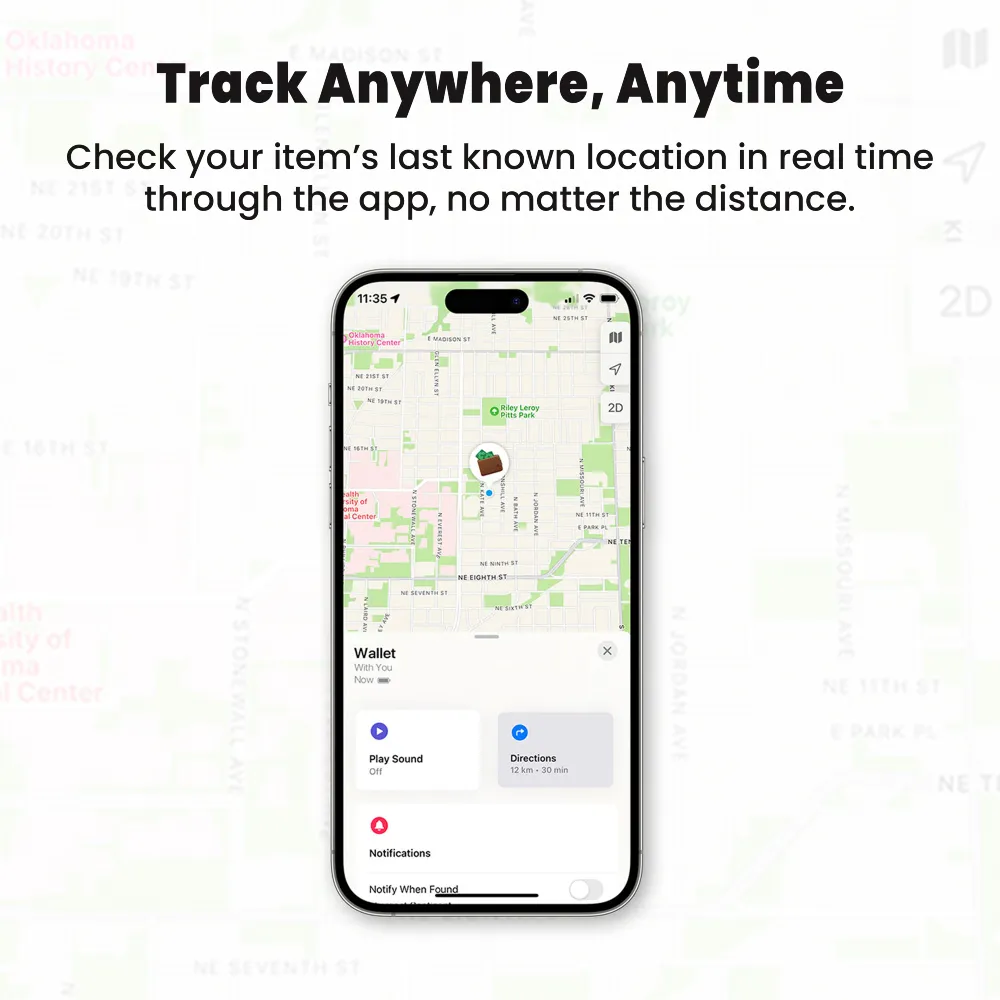
🌍 تغطية عالمية: تتبّع أغراضك عبر الشبكات المدعومة مع تحديثات موقع لحظية
-
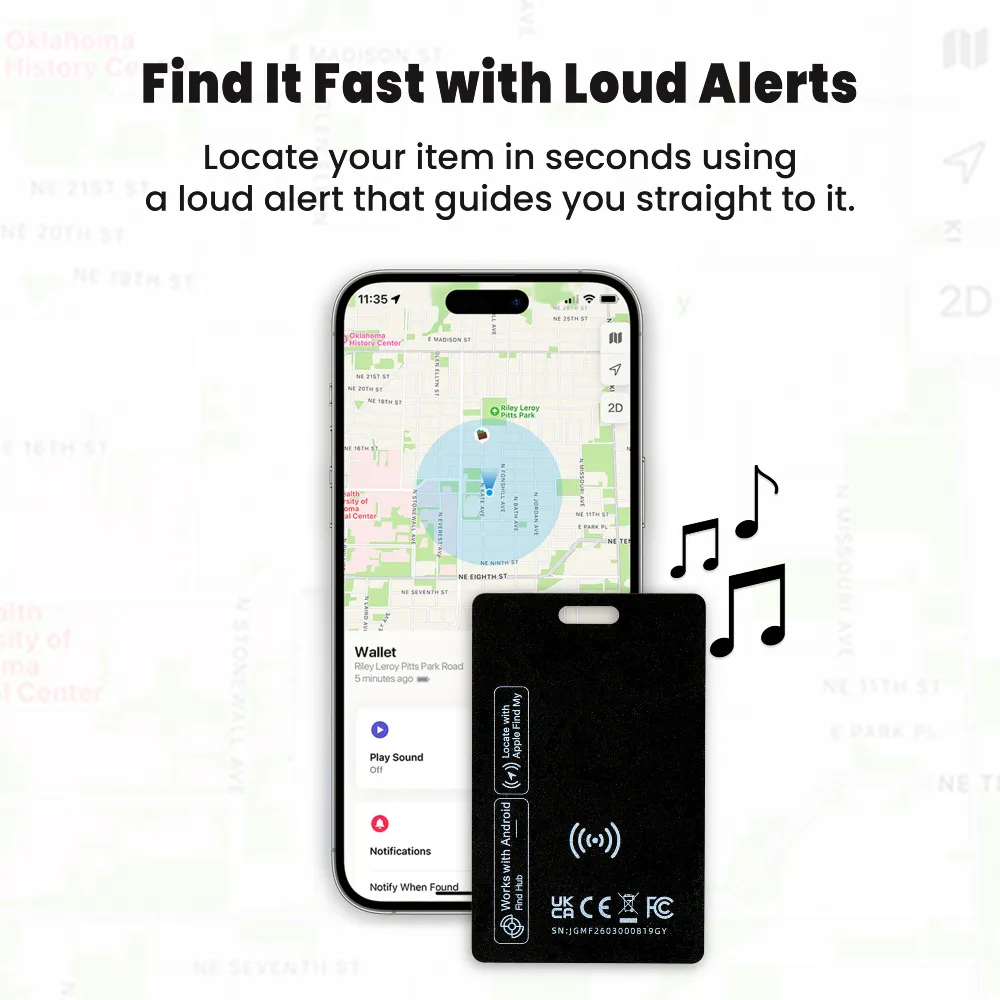
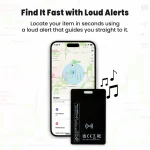
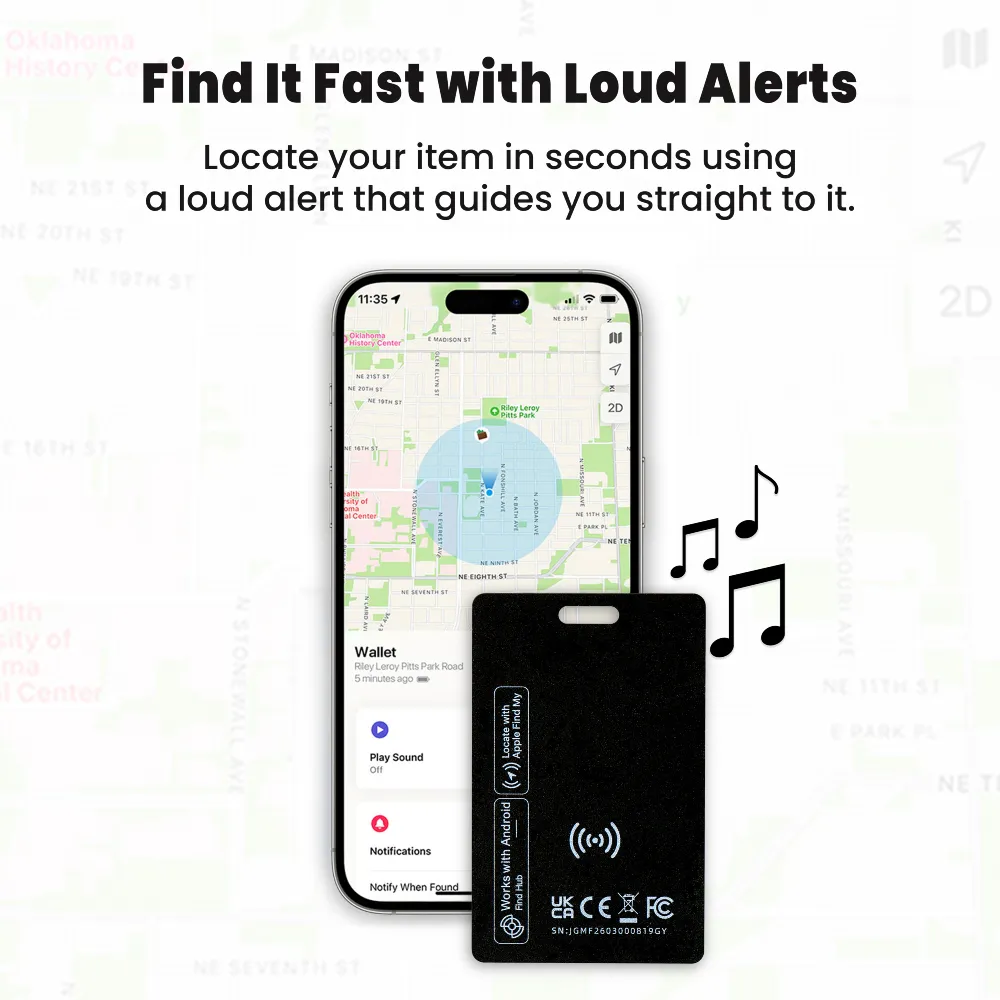
🔊 تنبيه صوتي: اجعل البطاقة ترنّ لتحديد موقعها بسرعة عند القرب
-
💧 مقاومة IP68 للماء والغبار: مناسبة للاستخدام اليومي والأنشطة الخارجية
-
📏 تصميم فائق النحافة: سماكة 2.5 مم — مناسب للمحافظ والحقائب وحامل المفاتيح
-
🔄 NFC للكشف والاتصال السريع: تفعيل سريع عبر NFC
-
💸 بدون رسوم اشتراك: تتبّع قوي دون تكاليف شهرية أو رسوم خفية
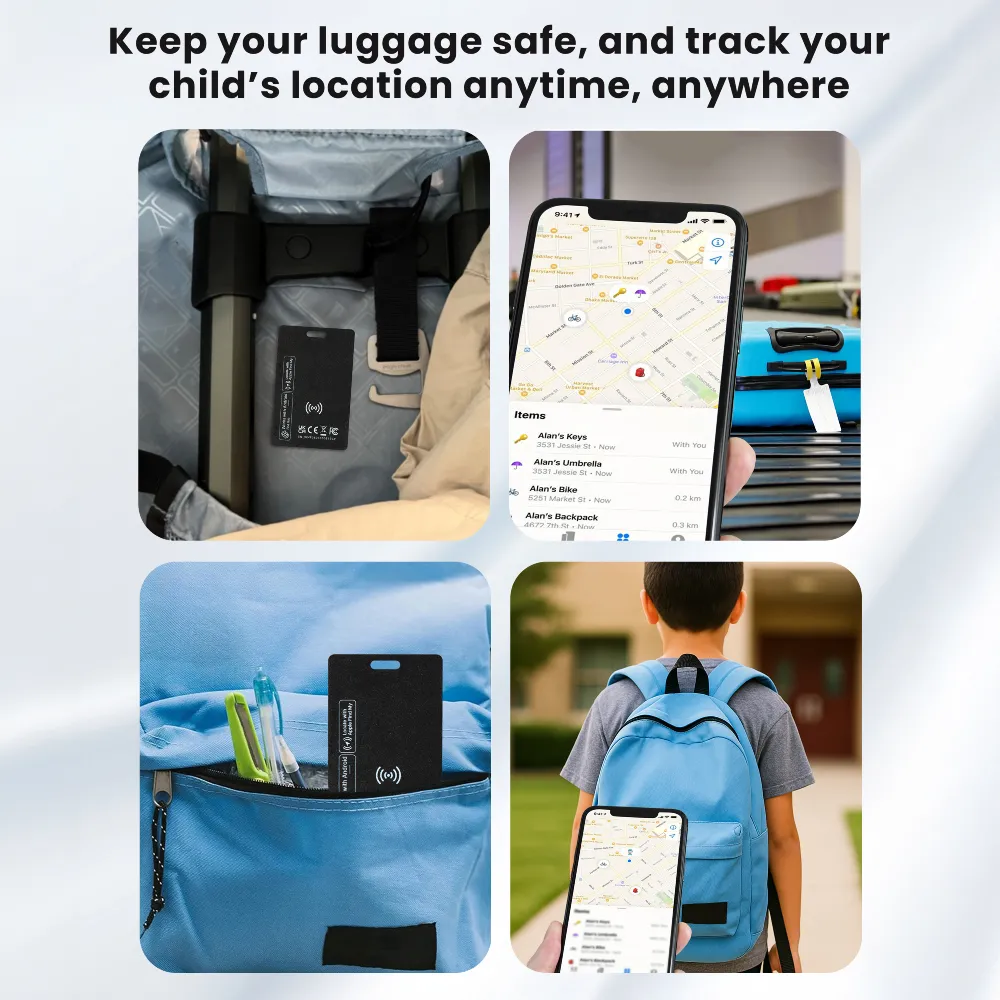
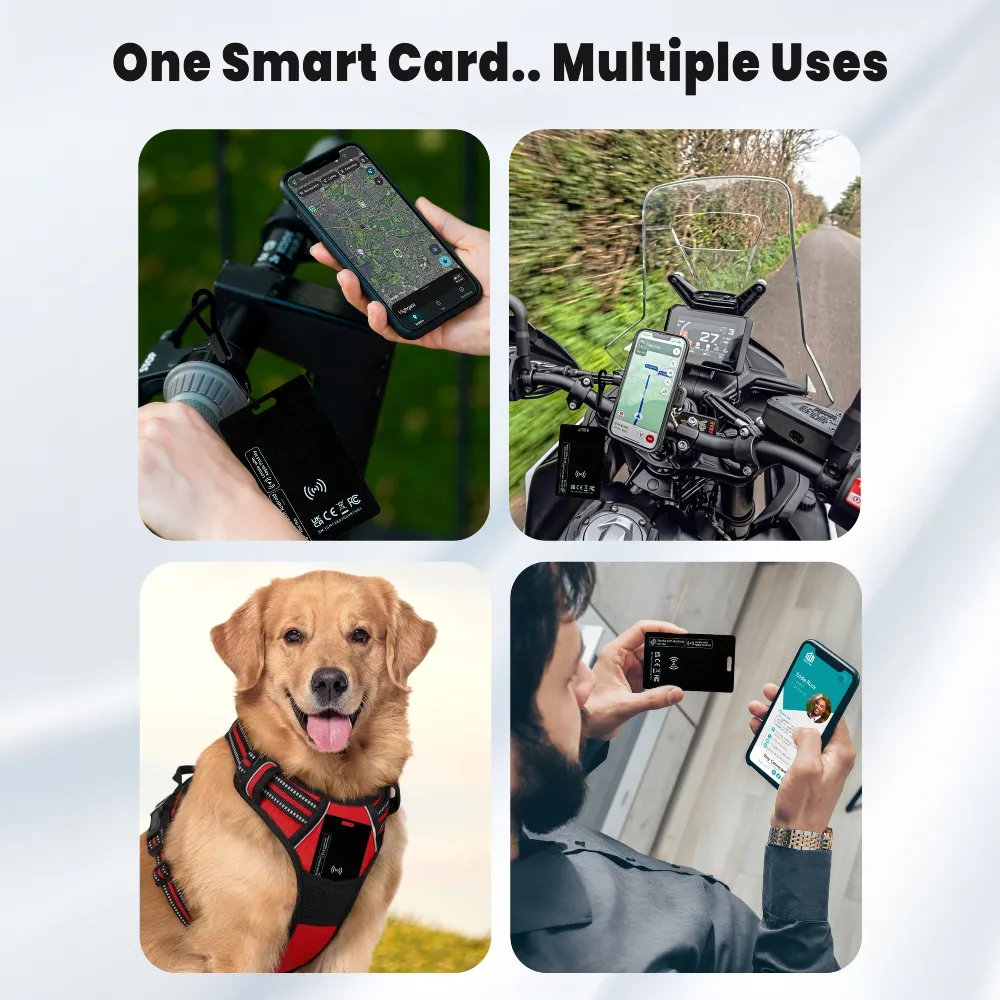
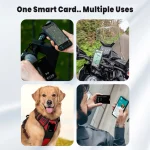
مناسب لـ: المفاتيح | المحافظ | الحقائب | الأمتعة | الحيوانات الأليفة | المركبات | سلامة الأطفال | وأكثر…
تفاصيل التغليف (Packaging Details)
-
علبة التغليف: علبة كرتونية بيضاء مع طباعة (Imprint)
-
محتويات العلبة:
-
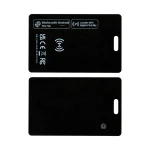
بطاقة تتبّع بحجم بطاقة (Card-size)
-
حزام/حامل أسود
-
دليل مستخدم مع QR code لتطبيق MiLi App
-
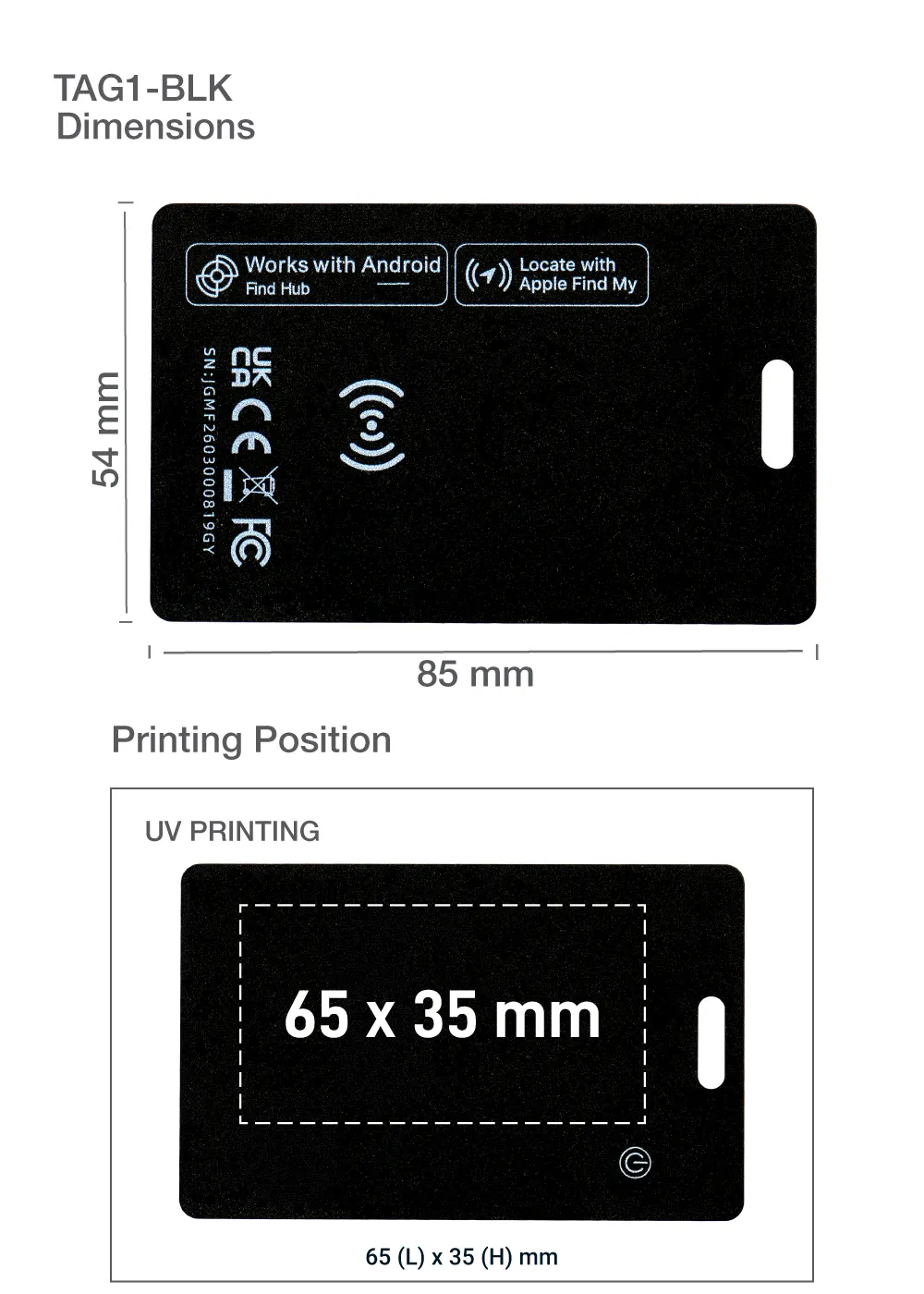
خيار الطباعة على البطاقة (Printing Option)
-
طباعة UV على البطاقة الرقمية
الأسئلة الشائعة (FAQ) — MiCard
Android
ماذا أفعل إذا لم يقترن الجهاز بهاتفي Android أو انقطع الاتصال بعد فترة؟
-
تأكد من تحديث تطبيق Find Hub إلى أحدث إصدار.
-
أعد ضبط الجهاز بالضغط على الزر بسرعة 6 مرات.
-
إذا لم تظهر نافذة منبثقة بعد إعادة الضبط، أعد تشغيل الهاتف ثم حاول الاقتران مجدداً.
ملاحظة: اربط الجهاز دائماً عبر النافذة المنبثقة داخل تطبيق Find Hub.
كيف أنقل العنصر إلى الحساب الرئيسي؟
احذف/أزل العنصر، ثم ادخل إلى إدارة الحساب (أعلى اليمين)، بدّل إلى الحساب الرئيسي، ثم أعد ربط العنصر.
لماذا يظهر “OK” ولا يكمل أو تظهر رسالة خطأ؟
حدّث خدمات Google، ثم أعد ضبط العنصر، وحاول إعادة الربط عند استقرار الشبكة.
لماذا يستمر رمز التحديث بالدوران؟
جرّب تحديث/إعادة تحميل الشاشة في وقت آخر عندما تكون الإشارة أكثر استقراراً.
ما مدى الاتصال ودقة تحديد الموقع؟
مدى اكتشاف Bluetooth تقريباً 20–50 متر (حسب البيئة). وتتبع الموقع يعتمد على شبكة Google Find Hub عبر أجهزة Android القريبة، وقد تختلف الدقة حسب توفر الأجهزة وقوة الاتصال.
هل يعمل داخل الأماكن المغلقة؟
نعم عبر ميزة “Find nearby”، وقد تختلف الدقة حسب كثافة أجهزة Bluetooth والعوائق (الجدران/التداخل).
هل يمكن استخدامه لتتبع حيوان أليف/طفل/شخص مسن؟
نعم، يمكن استخدامه كأداة مساعدة.
هل البطارية قابلة للاستبدال أم قابلة للشحن؟
يعتمد على الإصدار. بعض الإصدارات قابلة للشحن، وبعضها ببطارية قابلة للاستبدال تدوم حتى 12 شهراً.
كيف أتحقق من مستوى البطارية؟
قامت Google بإزالة الميزة مؤقتاً وسيتم إرجاعها لاحقاً. احرص على تحديث التطبيق، ويمكن متابعة أيقونة البطارية في صفحة قائمة الأجهزة.
هل يدعم UWB (Ultra-Wideband)؟
حالياً لا يدعم UWB.
ما الهواتف المتوافقة؟
جميع هواتف Android باستثناء Huawei.
هل حجمه مثل AirTag؟ (LiTag فقط)
نعم.
iOS
هل يعمل MiCard iOS على Android وiOS معاً؟
إصدار iOS مخصص لأجهزة Apple ولا يمكن تحويله مباشرة إلى Android. للتبديل: احذف العنصر من الجهاز القديم، أعد ضبطه، ثم اربطه بالهاتف الجديد.
لماذا لا يتصل MiCard iOS؟
-
تأكد من تفعيل Bluetooth وخدمات الموقع وقوة الإشارة.
-
أعد ضبط الجهاز: شغّله ثم اضغط الزر 5 مرات بسرعة؛ في الضغطة الخامسة اضغط مطولاً.
ملاحظة: قد تكون خوادم Apple غير مستقرة أحياناً؛ جرّب مرة أخرى لاحقاً.
لماذا لا أجد MiCard على iOS؟
يمكن ربطه بجهاز واحد فقط. افصل الربط من الجهاز القديم، أعد ضبطه، ثم اربطه بالجهاز الجديد.
لماذا لا تتم المزامنة بشكل صحيح؟
تأكد من اتصاله بتطبيق Apple Find My. إذا استمرت المشكلة، اضغط مطولاً 10 ثوانٍ لإعادة الضبط ثم أعد الربط.
دعم فني (Technical Support)
1) طريقة الاقتران (How to pair)
-
فعّل Bluetooth وWi-Fi.
-
شغّل جهاز MiTag/LiTag.
-
iOS: افتح “Find My” > تبويب “Items” > “Add Other Item”.
-
Android: افتح “Google Find Hub” > “Add new device”.
2) إيقاف التشغيل (How to power off)
اضغط مطولاً 5 ثوانٍ حتى تسمع صوتين (Beep).
3) إعادة الضبط (How to reset)
شغّل الجهاز ثم اضغط 5 مرات واضغط مطولاً في الضغطة الخامسة حتى تسمع Beep ثم اتركه. يجب أن يتم ذلك ضمن مدى Bluetooth.
4) ربطه بهاتف جديد
احذفه من Find My أو Google Find Hub ثم أعد ضبطه ثم أعد الاقتران.
5) لماذا لا يرن بعد الاتصال؟
تأكد أنه ليس مطفأً أو تمت إعادة ضبطه. بعد الاتصال انتظر حوالي 30 ثانية حتى يكتمل التحديث ثم سيعمل “Find Nearby Devices” ويصدر الصوت.
6) لماذا لا يرن بعد إعادة الضبط وإعادة الربط؟
قد لا يكون تم حذف الجهاز من الهاتف قبل إعادة الضبط. ادخل قائمة الأجهزة، اختر الجهاز الأصلي وسيبدأ بالرنين.
7) لماذا لا يتحدث الموقع؟
تأكد من تفعيل خدمات الموقع، وأن الجهاز ليس مطفأً أو بطاريته فارغة أو تمت إعادة ضبطه. قد تسبب الشبكة الضعيفة تأخيراً في التحديث.
8) ماذا أفعل إذا نفدت البطارية؟
أخرج البطارية وأعد تركيبها، أو استبدلها ببطارية جديدة CR2032 (في الإصدارات التي تستخدمها)، ثم حاول إعادة الضبط. تواصل معنا للمساعدة عند الحاجة.
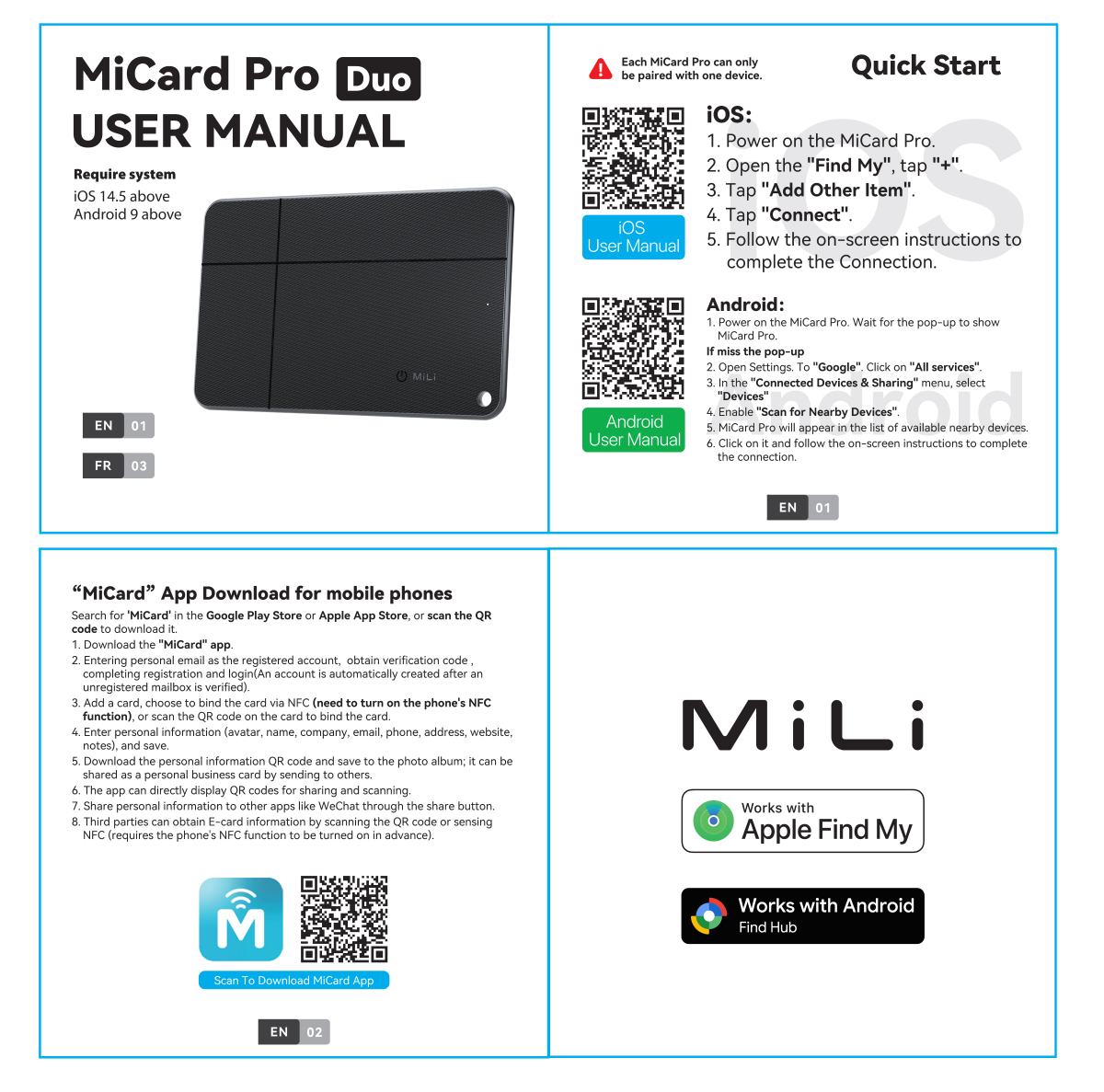
User Manual
Application & Presentation
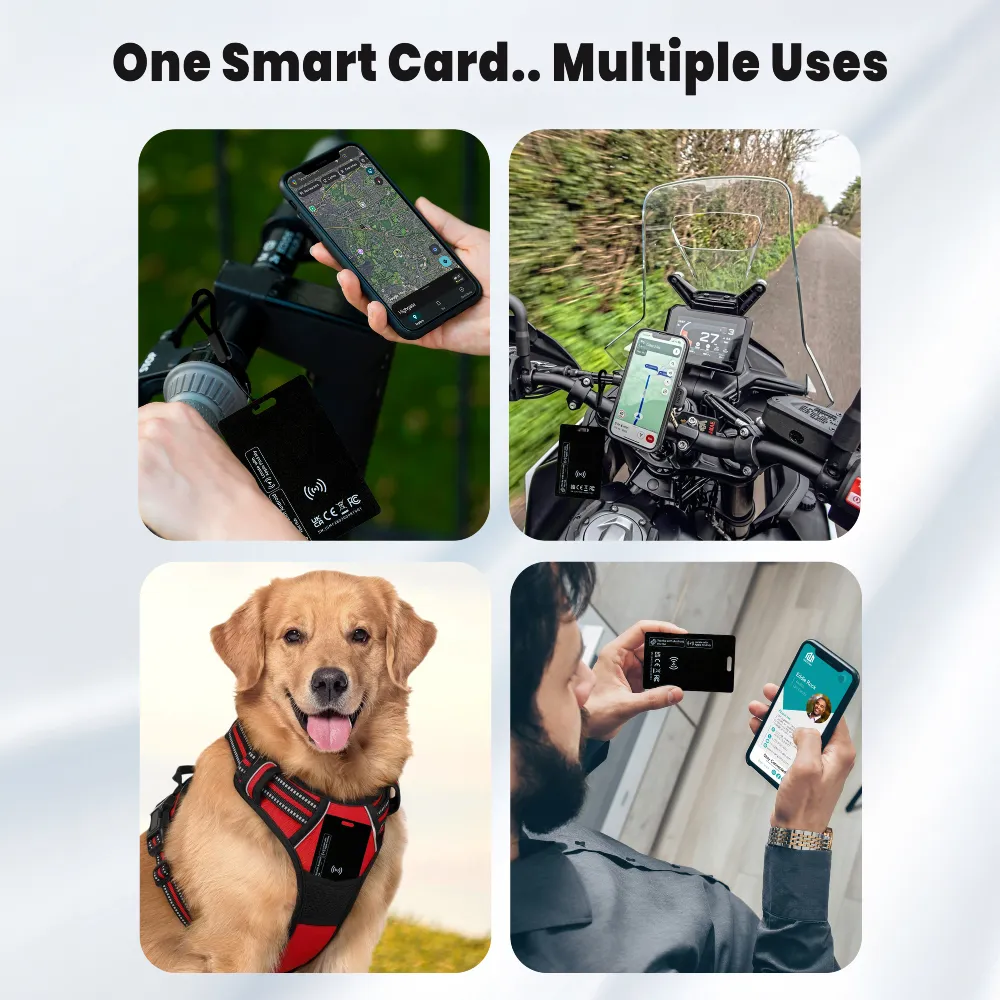
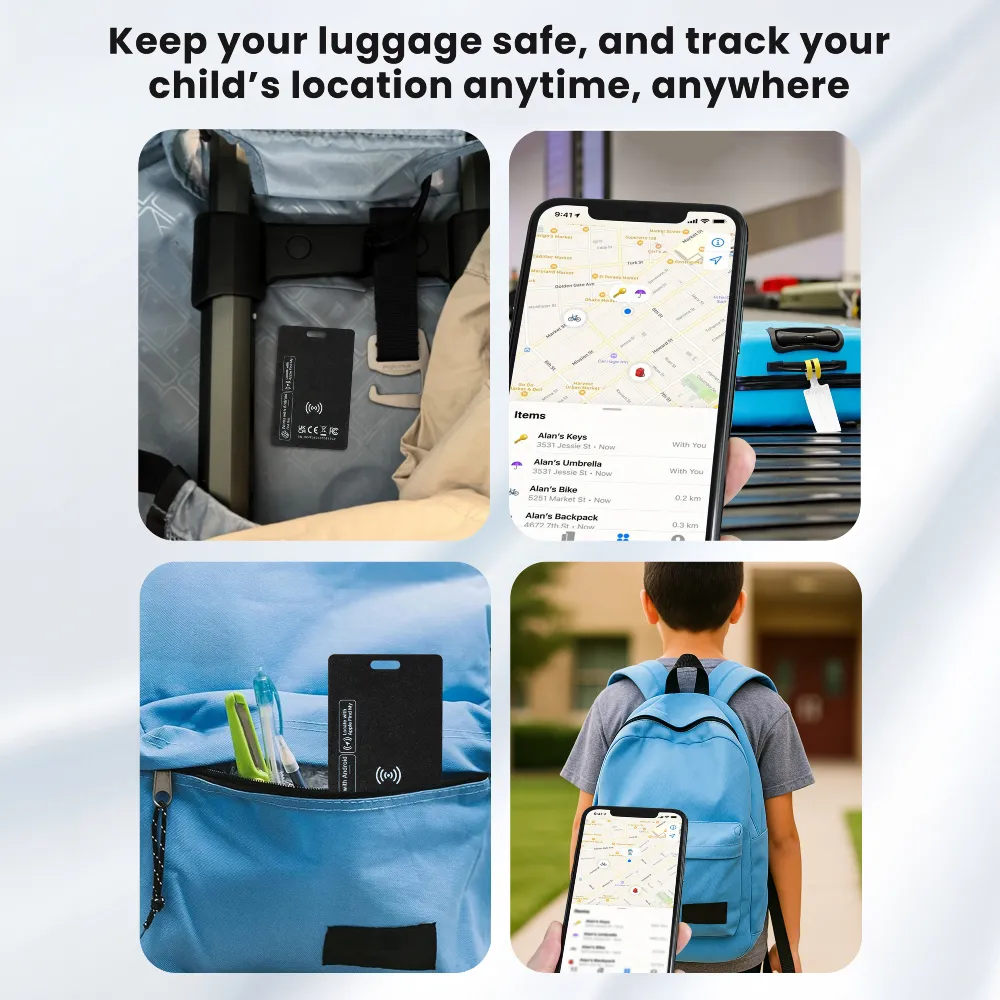
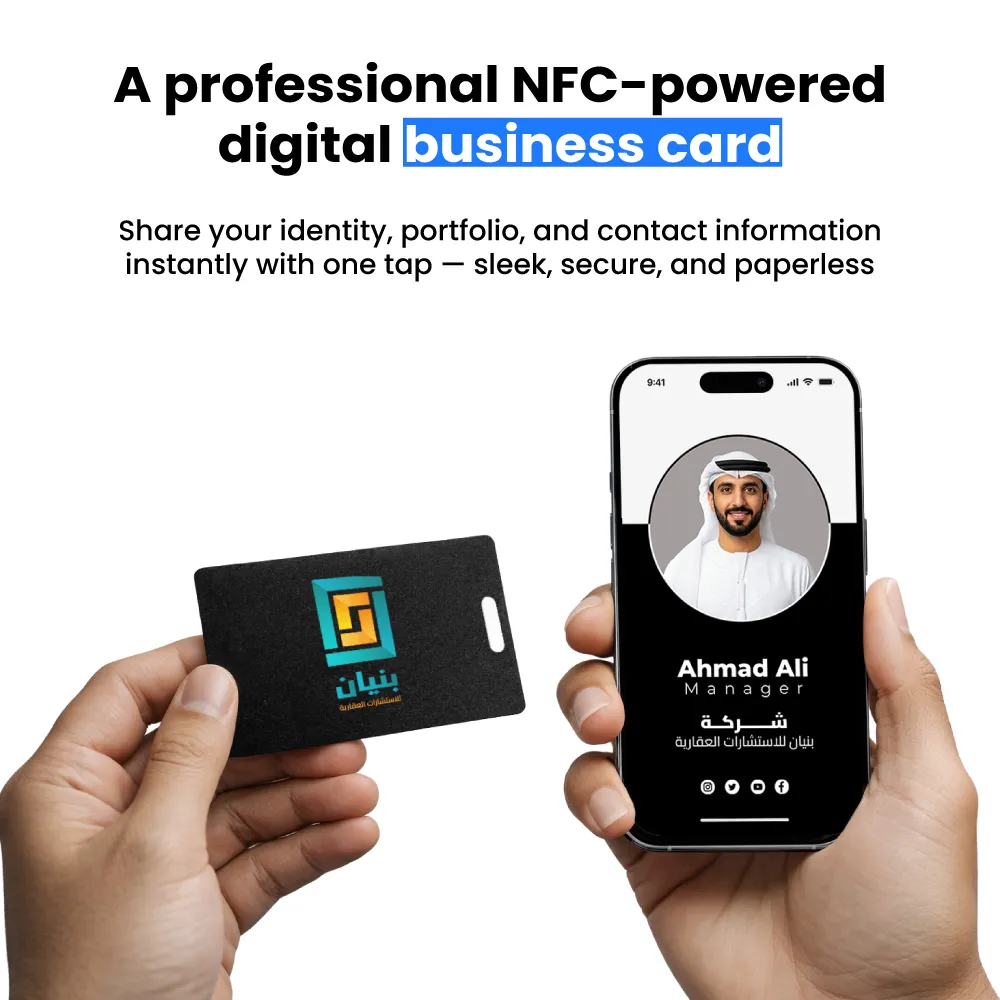
FAQ
FAQ
Welcome to our MiCard FAQ We are so happy to have you here and as a client. We have tried to answer the most common questions.
Android Phone
What should I do if my device won’t pair with my Android phone or disconnects after a while?
Please try the following steps:
- Make sure the Find Hub app is updated to the latest version.
- Reset the tag by quickly pressing its button six times.
- If no pop‑up appears after resetting the tag, restart your phone and try pairing again.
Note: Always connect via the pop‑up window in the Find Hub app.
How to switch the item to the main account?
- Remove the item, go to account management in the top‑right corner of the app, switch to the main account, then reconnect the item.
Why does it show "OK" but not proceed or show an error?
- Update Google services, and reset the item. Try reconnecting when the network is more stable.
Why does the update icon keep spinning?
- Try refreshing the screen at a different time when the signal is more stable.
What is the connection range and location accuracy of the MiCard Android Tracker?
- The MiCard Android Tracker has a Bluetooth detection range of approximately 20 to 50 meters under normal conditions, depending on the surrounding environment. For location tracking, it uses Google’s Find Hub network, which relies on nearby Android devices to provide highly accurate location data. Accuracy may vary based on device availability and connection strength.
Can I track MiCard Android indoors?
- Yes, MiCard Android can be tracked indoors using the “find nearby” feature, like UWB of AirTag. However, the accuracy may vary slightly depending on the density of Bluetooth devices in the area and potential obstacles like walls or interference.
Can I use it to track my pet, my kid, or an elderly family member?
- Yes. It can be used as a tool.
Is its battery user-replaceable or rechargeable?
- MiTag/LiTag Android Tracker comes with a replaceable battery that lasts up to 12 months.
How to check the battery level of the MiCard Android Tracker?
- Google has temporarily removed this feature, but it will be restored in a future update. Please ensure your app is always updated to the latest version. You can check the battery icon on the Device List page.
Does the product support UWB (Ultra‑Wideband) compatibility?
- Currently, the product does not support UWB compatibility.
What Android phone is it compatible with?
- All Android system phones except Huawei.
Is it the same size as an AirTag? (Only LiTag)
- Yes.
iOS Phone
Can MiCard iOS work with both Android and iOS?
- MiCard iOS is designed for Apple devices and cannot be switched directly to Android phones. To switch phones, remove the tag from the original iOS device, reset the tag, then connect it to the new phone.
Why is MiCard iOS not connecting?
Please follow these steps to troubleshoot:
- First, check that Bluetooth, Location Services, and signal strength on your iPhone are enabled and stable.
- Reset the tag by turning it on, then press the button five times quickly; on the fifth press, hold it down longer.
Note: Apple’s servers may sometimes be unstable. If the connection fails, please try again later.
Why can’t I find my MiCard on iOS?
- MiCard iOS can only pair with one device at a time. Unpair it from the old device, reset it, then pair it with the new device.
Why is my MiCard iOS not syncing correctly with iOS?
- Ensure that the MiCard iOS is connected to the Apple Find My app. If you experience issues, try resetting the device by holding the button for 10 seconds, then reconnect to your iOS device.
Didn’t find your answer?
- Don’t hesitate to contact us:
Technical Support
Technical Support
How to pair?
1. Turn on Bluetooth and Wi‑Fi connections.
2. Power on the MiTag/LiTag device.
3. For iOS: Open the “Find My” app, go to the “Items” tab, tap “Add Other Item”.
4. For Android: Open the “Google Find Hub” app, tap “Add new device”.
How to power off?
- Long-press for 5 seconds until you hear 2 beeps.
How to reset?
- Make sure your MiTag/LiTag is powered on, then press 5 times and hold from the fifth press until you hear a beep, then release. This must be done within Bluetooth range. You can try playing a sound to check if it's in range.
How to connect MiTag to a new phone?
- Remove it from the Find My app or Google Find Hub.
- Then reset it.
Why doesn’t it ring after connecting?
- Ensure the item is not turned off or reset. After connecting, wait about 30 seconds for the update to buffer. Once the “Find Nearby Devices” window appears, the sound will play.
Why doesn’t it ring after resetting and reconnecting?
- The device wasn’t removed from your phone after the reset. To fix this, go to the device list, select the original MiTag/LiTag, and it will start ringing.
Why is the item’s location not updating?
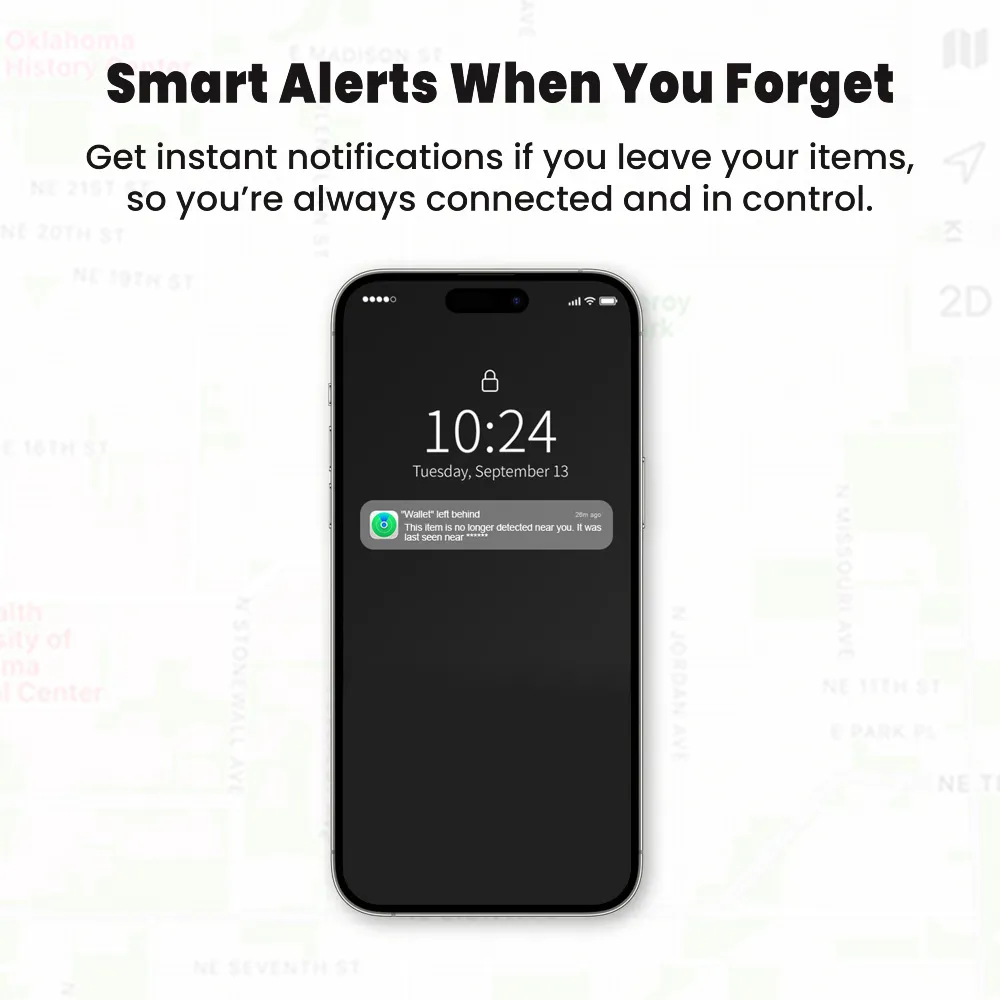
- Ensure that Location Services are enabled in your device's settings. Check if the item is turned off, out of battery, or has been reset. Note that location updates may be delayed if your network connection is weak.
What should I do if the battery is dead?
- Take out the battery and put it back in.
- Replace it with a new battery (Model: CR2032).
- Try to reset.
- Contact us for help.
معلومات إضافية
| الوزن | 0,012 كيلوجرام |
|---|---|
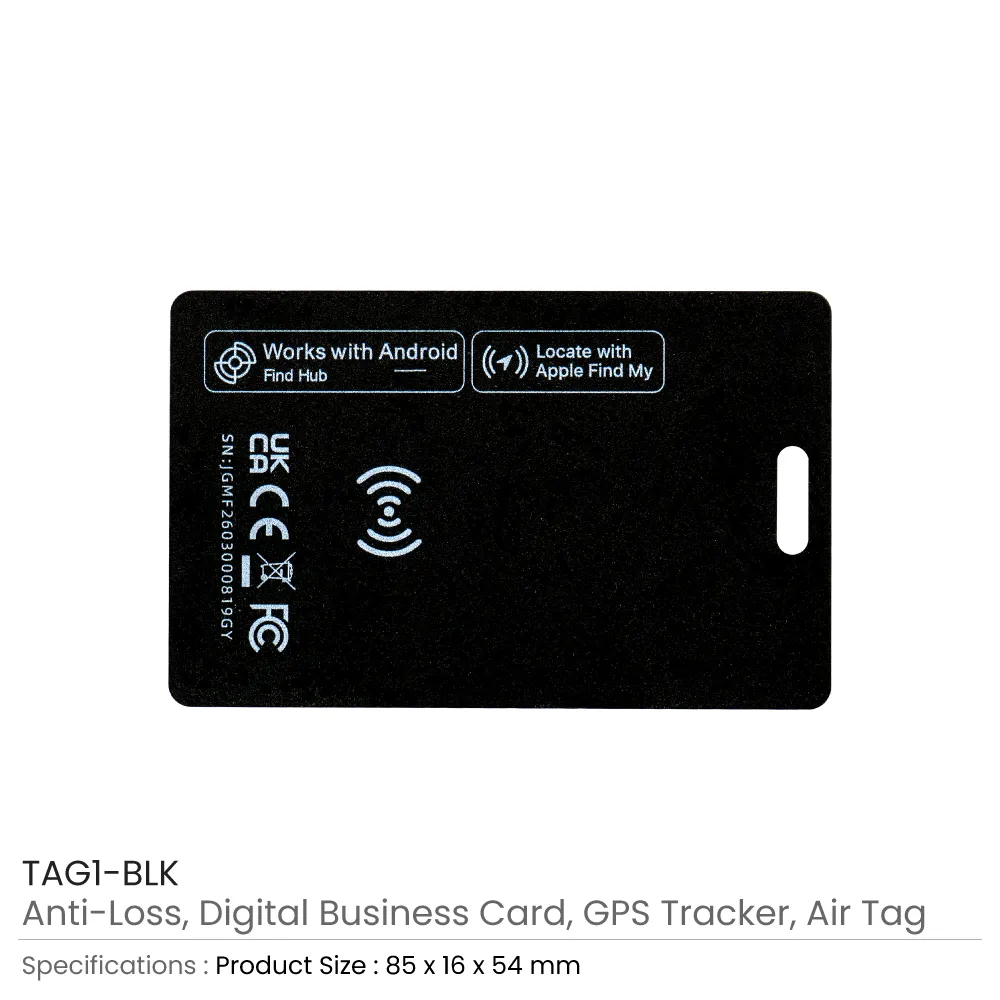
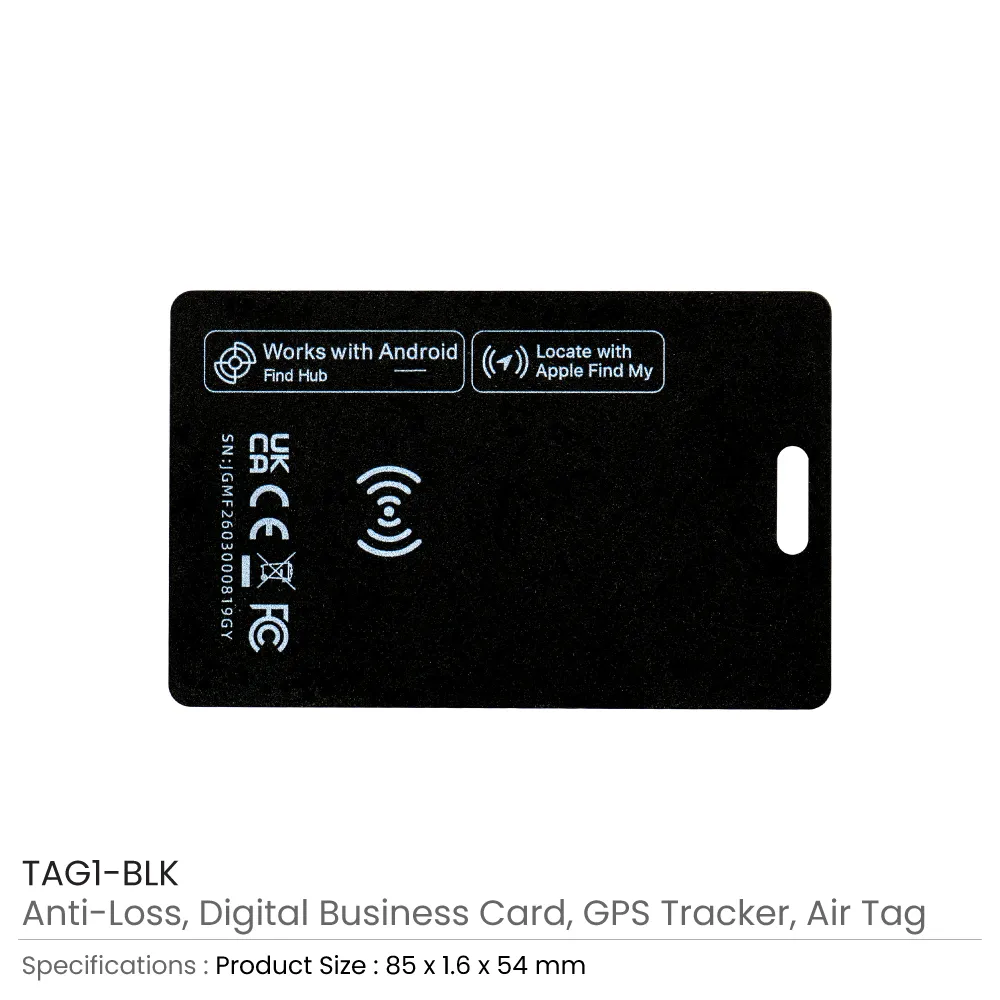
| الأبعاد | 8,5 × 1,6 × 5,4 سنتيميتر |
| Material | ABS Plastic |
| Key Features | Global GPS Tracking, Play Sound to Find, NFC Technology, Wireless Charging, Waterproof & Dustproof. |
| Pcs in Carton Box | 200 |
| Carton Weight | 10 kg |
| Carton Box Size | 51 x 36.5 x 24.2 cm |
| Printing Options | UV Printing |
| HS Code | 84719000 |
| Country of Origin | China |
الشحن والتوصيل